Saturday, 29 April 2017

How To Automatically Delete Duplicate Files On Android Device.


How To Automatically Delete Duplicate Files From Your Android Device
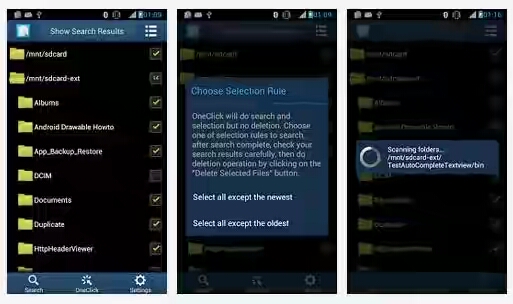
Search Dupicate File

Almost every android smartphone users experience file duplication on their device especially on SD card.
This duplicated file may occur due to several reasons. That result to SD card storage space being used up as a result of the large size of the duplicate file. Most common occurrence of this is the extracted files, when we extract files sometimes they do duplicate or even stop while extracting.

RecommendedAirtel Nigeria Has Finally Set To Roll Out Its Own 4G Network.

How to Customise WhatsApp Notifications For Every Contact.

When this happens the extracted part will be saved which is totally useless and consumes lots of space. Another instance could be as a result of a faulty memory card or even your Device, it can also be as a result of WhatsApp users sending the same files multiple times especially in a group chat.

I've had an experience of duplicate file on my Samsung galaxy A9 too which gave me a lot of problems and confusions with storage. In some situations where I want to download a video tutorial of large size, I so shock to receive a notification that my storage space is too low for the file I wanted to download, I was then asking myself what could be the problem with my phone?  sadly enough i found out my storage is full but still can't find the reason for it.

It was later that evening that I noticed that  it was due to my faulty memory card which continuously duplicated files and saved them in a secret folder. Although after performing this tutorial am about to explain I had to dispose the SD card avoiding future occurrences.

It's so easy to remove duplicate file on android device and the good thing about it is that it doesn't require rooting your device.

Just follow the simple tutorial below.

Requirement

1. Your Android Device
2. Go to play store and install Search Duplicate file, After installing the app, follow the process below to start the App and clear duplicated files on your device.

Features Of Search Duplicate File Removal


• OneClick to search and select

• Save/load search results

• Specify path/size to search for

• Best App to Find Duplicate Photos on android

• Support searching hidden files/folders

• Support internal/external SD card

• Support previewing photo/apk/storage

• Notify you when a search complete

• Search results are grouped by file size

• View file content before deleting/excluding it

• Batch select/deselect files/groups

• Batch delete/exclude files/groups

• Batch expand/collapse groups.


How to Clear Duplicated Files With Search Duplicate Files

1. After downloading and installing this app from playstore .

2. Launch the app and allow it to access your files

3. After it done with accessing your files, it automatically marks all folders where you saved a file.

4. Now look at the lower part of your screen and click on the search icon.

5. Immediately it begins to scan files and once done.

6. It displays duplicated files and automatically marks all of them.

7. Now you can check the files to make sure you don’t lose important files, but if you are sure that major documents are safe and not saved with the same name just hit the delete of bin icon to delete these files and save some space for on your device.

You Should Also ReadHow to Use CLONEit to Copy Apps And Data From One Android to Another

How To Show And Display Music Lyrics On Android Stock Music Player

8. Once they are deleted scan again to confirm and see the magic. Remember you have to set the storage in which you are searching for duplicated files from. That is from your SD Card or your device storage. Once that is done it free up some space for the installation of useful files.

Besides deleting duplicated files some other things can cause your device memory been full. But from what I noticed saved data from various social media apps, utility apps causes this. So when you see that you really do need space, you can clear the cache of a huge app or data.

If you have any question feel free to ask by making use of the comment box below.
At idea4novice we are committed to giving you the best when it comes to tutorials on how tos, Androids and lot more.
Enjoy!

Labels: , ,

How to Customise WhatsApp Notifications For Every Contact.


How to Customise WhatsApp Notifications For Every Contact

Customise WhatsApp Notification


When it comes to social networking and instant messaging service, WhatsApp has become one of the most popular in the world and although it comes with its own bits of drawbacks, the service has been updating ceaselessly to be at par with the competition.

Being the goto messaging service for most android users, all of us get tens and hundreds of messages every day on WhatsApp.
While some of them are from people we wish to talk, more than often it’s some group message crowding your notification bar.

RecommendedHow To Run Multiple Accounts Of The Same App On Android Device

How To Create Video Collage To Share On Instagram And Other Social Networks.

For instance, if you’re working and waiting for a reply from a particular contact, it makes sense to assign a separate message tune or notification light for that contact.

This way you’ll only interrupt your workflow when you’re sure it’s a message you wish to read and reply immediately.
Not only during work but otherwise too, if you don’t wish to be bothered by notification from all your contacts but only a few specific ones, then assigning custom tune, notification light colour or vibration setting is recommended.

How to Set Customise Tone, Vibration and Notification Light?

You’ll need to go to the contact’s profile page on WhatsApp — view profile. You’ll find ‘Custom Notifications’ option below the Mute toggle button.

Customise WhatsApp Notification


The new window will show you ‘Use custom notifications’ toggle button on the top, which you’ll need to check in order to be able to customise message and call notifications on WhatsApp.

Customise WhatsApp Notification


Users can customise message notification tone, vibration (none, short, long or default), popup notification (control whether you see a popup always, or when screen is on or off), and notification light.

You Should Also ReadHow To Convert Personal Facebook Account To A Page And Get More Likes

Master Card Introduces New Credit Card with inbuilt Fingerprint Scanner

Users can also customise WhatsApp call ringtone and vibration duration for the particular contact.

Customise WhatsApp Notification


Once custom notifications are enabled, you’ll see ‘Enabled’ written below the ‘Custom Notifications’ option (as seen in the image above).
Note that you’ll have to customise these settings for each and every one of your contacts individually.

Create Shortcut for a Contact
You can also create a shortcut for a contact that you frequently talk to on your home screen. This is especially useful if you don’t wish to open the WhatsApp app to read their messages or write to them;
Here’s how: Open the chat window of that contact.
Tap on the ‘three-dot’ menu on the right-hand corner of the app.
Scroll to the last option — ‘More’ — and tap.
Find ‘Add Shortcut’ — the last option in the new menu — and tap.

Customise WhatsApp Notification

You’ll see a pop-up notification that a chat shortcut has been added to the home screen — name and picture of the contact in a neat round bubble.
Clicking on this icon will take you straight to the chat window of the respective contact.

Conclusion
With this simple and straight forward tutorial am really sure that you can now easily customize your WhatsApp notification. If you have any other question concerning this post don't hesitate to ask using the comment box below.

Happy sharing!

Labels: , , , ,

How To Create Video Collage To Share On Instagram And Other Social Networks.


Video Collage


Have you ever need an app that can help in collaging your videos the way your picture are been collaged. Guess it will be perfectly awesome to have such an app in which one can explore and test his creativity be creating a video collage and sharing it on social media like Facebook and Instagram.

RecommendedMaster Card Introduces New Credit Card with inbuilt Fingerprint Scanner

How To Run Multiple Accounts Of The Same App On Android Device

Sadly enough I only saw this feature on Samsung Galaxy S7 which was an built-in feature and i wish other android device comes with the same inbuilt features. So today I will share with you my research on app that can collage videos on android device. Now the thing is, there are quite a few apps that claimed to do the task, but only a few were able to accomplish what I was looking for. So let’s have a look at them.

1. PicPlayPost
The first app that you should probably try is PicPlayPost just go to playstore to install it. The app is free to download, however, the first time you launch the app, it will give you an option for in-app purchase to remove ads and watermark from the processed videos. Although, there’s plenty of time for that, right now it’s time to see how the app works. The first thing you would be asked is to select the frame style and you have plenty of options to choose from, including the ratio of the videos. From what it looks like, you can stitch as many as 6 videos to make a collage.

Picplay post : Android video collage

Having done that, the next thing you will have to do is import videos from the gallery. You can also give background music and a still photo along with the video and that will work too. If things don’t fit in, drag the video inside the frame and zoom in or out. You can also tilt them if you like.

Picplay post : Android video collage

Finally, when everything is set, you can preview the creation and if you like what you see, just tap on the share button to share it on Facebook, Instagram or any other social media platform. Tapping on the gallery option will save it to the device’s internal storage.

You Should Also ReadHow To Show And Display Music Lyrics On Android Stock Music Player

How To Save Mobile Data When Using WhatsApp.

Picplay post : Android video collage

If you ever face any issues while importing video, you can open up settings and select the option Change Video Codec . Here you can import a sample video from your camera and then wait for the app to import codecs to use in the future. Here itself, you can also buy the app’s full version and get an ad-free interface without watermarked videos.

Video Collage for Android


2. Video Collage
The second app you ought to try is Video Collage which is also available on playstore and the biggest advantage you get with this is that you don’t have the watermark on the processed video even in the free version. There are ads, but nothing you can’t live with to support the developers. The only feature missing here is that you don’t have the option to trim and edit the video and they will be imported as it is. So you will have to either live with the stock videos or use an external editor to trim them.

Video Collage

In the app, you can add photos and background music, but in addition to that, there’s also support for text and stickers to make the video look cooler. It’s very easy to work with these additional elements and place them on the videos. Another thing that’s missing when compared to the previous app is the option to select a frame of
different aspect ratio. You only get square frames but they have some nice designs. The rendering also takes longer duration but not significantly.


Conclusion.
So that was how you can create video collages on your Android and make your regular videos awesome for your social network.
If there's any question regard this post don't hesitate to ask in the comment box and lastly always remember to share this blog post with your friends.
Enjoy?

Labels: , , , ,

How To Run Multiple Accounts Of The Same App On Android Device


How to Run Multiple Accounts of the Same App on Android.

Maintaining a dual identity on the internet with android either single or double sim is not quite easy, unlike on a computer and browser where you can sign in to different account and have access to it at the same time.

 Maintaining a dual identity on the internet there can be a lot of reasons for you to be able to access multiple online accounts at once.

Good enough there are some developers like Instagram, who considers and don't regard it as an offense  for users who you and have multiple account, thereby giving a provision to add multiple
accounts from a single app, but then there are the others. WhatsApp, Facebook and lot more who think that it's only proper and more saver for a person to live with a single account, even though he or she might be using a dual SIM phone and can have different business and personal identities.

RecommendedHow To Change Email Delivery Time On Feedburner

How to Use CLONEit to Copy Apps And Data From One Android to Another

There was a method in the past with which one can change the signature of an app and clone it to run multiple instances . But the app is hard to work with (especially with recent security updates to Android) and didn’t give a 100% result. So to make things better, I would like to introduce to you an app called Parallel SpaceSpace which allow you to have access and run two instances of the same app and that too without breaking a sweat.

Using this app, you can run two instances of any app installed in your phone, like WhatsApp,
Facebook, and the good thing about this app is that it doesn't require you to root your device before you can use it and interestingly both of them will work independently. So that means you can have two accounts of WhatsApp, Hike, and even Snapchat. So let’s see how the app works.

How to Set Up And Use Parallel Space

Once you install Parallel Space, it will automatically add Facebook+ and Instagram+ icon in the app drawer along with the Parallel Space app. This app is like a sandbox where you run all
the other apps and just as you launch Faecbook+ or Instagram+ it will ask you to configure a new account. Just think of it as running a browser as a different user and both the app will work in parallel space.

Parallel Space

Parallel Space

After you launch the app, you will see a grid with some default apps . To add a new one, tap on the plus icon at the bottom of the page and you will see a list of all the apps installed on your phone. Just select the one you wish to add and then let the app do its magic.

Parallel Space

Parallel Space

The app will be added to the Parallel Space, and you will be able to configure as a newly installed app. I tried WhatsApp, Uber, Facebook, Messenger and every one of them worked like a charm. There is no limitation on the number of apps you can run in parallel space, and every app will keep on stacking up in the grid.

Parallel Space


All the apps running in Parallel Space will definitely keep working in the background and will be active as long as Parallel Space is active. Therefore, you should make sure that it’s not killed by any of the task killer apps you are using. The app will have high battery usage and will require a lot of permissions, but the battery usage is the combined usage of all the apps that you are running in Parallel Space.

You should also readHow to Create Lite Version App For Blog without Programming Idea

How To Stop And Reduce Overheating Of Smartphone.

How To Setup Custom Robots Header Tags On Blogger

While using the app, I noticed that all the apps in Parallel Space are updated automatically when the base app is updated from the Play Store. If you need to share anything to an app that’s running in Parallel Space, you will have to select that option from the sharing menu and then choose the final app. Under settings, you get the option to invoke the app from the bottom left or right edge and, therefore, makes it easy to launch any of the apps configured in Parallel space.

If you find this tutorial helpful,don't be selfish you can share it with friends by using the share button also if there's any question or query never hesitate to use the comment box below.
Enjoy!

Labels: , , ,

Thursday, 27 April 2017

Full Specification And Price Of Gionee M6S Plus With 6GB RAM and 6,020Mah Battery In Nigeria.


Full Specification And Price Of Gionee M6S Plus With 6GB RAM and 6,020Mah Battery In Nigeria.

Gionee MS6 Plus

Gionee's new M6S Plus features a 6-inch display and runs on Android 6.0 marshmallow. It features a 6GB RAM and two internal storage variants which are the 64GB and 256GB. Aside the large RAM, one other selling point of the new Gionee M6S Plus is the massive 6,020mah battery.

You can check out the full specifications and price of the Gionee M6S Plus below.

Gionee M6S Plus Specifications
Network and Software
GSM: GSM 850 / 900 / 1800 / 1900
3G: HSDPA 850 / 1900 / 2100
4G: LTE bands 1(2100) / 3(1800) / 5(850) / 8(900)
SIM Type: Dual SIM (Micro SIM, Nano SIM dual stand-by)

Recommended : Full Specification Of Afrione Z1 The First Made In Nigeria Mobile Phone.

How To Convert Personal Facebook Account To A Page And Get More Likes

Design
Dimensions: 163.3 x 80.9 x 8.25 mm
Weight: 215 g
Sensors: Fingerprint, light sensor, gravity sensor, electronic compass, compass, gyro, proximity sensor
Build: Metal
Colours: Grey. Black. Gold.
Display
Display: OnCell AMOLED
Size: 6.0-inch
Resolution: 1080 x 1920 pixels (401 PPI)
Protection: Corning Gorilla Glass

Processor and OS
Processor Type: 64-bit Octa-core 1.95 GHz
Processor Name: Qualcomm Snapdragon 653
Graphics Processor:
OS: Android 6.0 Marshmallow + Amigo UI 3.5

Memory
RAM: 6 GB
Internal Storage: 64 GB / 256 GB
External Storage: microSD, up to 128 GB
Cameras
Rear: 12 megapixels, f/1.9 lens, autofocus, LED flash
Video recording: 1080p @ 30fps
Front-facing: 8 megapixels, LED flash
Multimedia
Music Support: MP3/WAV/eAAC+ player
Loudspeaker: Waves Audio Stereo
Video Support: MP4/MPEG4/H.263/H.264 player
FM Radio: Yes
Connectivity
Bluetooth: v4.0
WiFi: Wi-Fi 802.11 a/b/g/n, hotspot
GPS: Yes
USB: microUSB v2.0, USB-On-the-Go
Battery
Charging: Fast Charge
Battery: 6020 mAh
Availability and Price
Announced: April 24, 2017
Availability: May 2, 2017
Launch Price: CNY3,499 ($510) for 64 GB model / CNY4,299 ($625) for 256 GB model.

Labels: , ,

Full Specification Of Afrione Z1 The First Made In Nigeria Mobile Phone.

Afrione Gravity Z1


Afrione the first made in Nigeria mobile phone

AfriOne Gravity Z1 - Specifications and Price in Nigeria
The AfriOne is a new smartphone manufacturer company, that recently established its assembling plant in Lagos. At the opening event, the company announced a new smartphone which is the AfriOne Gravity Z1.

RecommendedHow To Setup Custom Robots Header Tags On Blogger

How To Change Email Delivery Time On Feedburner

How To Get 500mb for N200 and 150mb for N100 on Airtel

Below is the specification of the afrione gravity Z1
 The Gravity Z1 features a 5.5-inch IPS and a 3000 mAh battery.
Unfortunately, AfriOne has not yet announce the full specification of the Z1.
But you can have a look on the few review of the AfriOne Gravity Z1 specifications that are available. We will update
the specs as we get our hands on more details.
AfriOne Gravity Z1
Specifications
Network and Software
GSM : GSM 900 / 1800
3G : HSDPA 2100
4G : No
SIM Type: Dual Micro SIM
OS : Android OS
Design
Dimensions : mm
Weight : g
Display : 5.5-inch LCD IPS touchscreen
Sensors: Accelerometer, Ambient Light, Proximity
Build :
Colours : White
Inside
Processor Type:
Processor Name:
Graphics Processor:
RAM : 2 GB
Internal Storage: 16 GB
External Storage: microSD, up to 32 GB
Camera
Rear : 8 megapixels, autofocus, LED flash
Video recording : Yes
Front-facing : 5 megapixels with soft flash
Multimedia
Music Support : AAC, AMR, MP2, MP3, M4A, MKA,
Loudspeaker : Yes
Video Support : MP4/MPEG4/H.263/H.264 player
FM Radio :
Connectivity
Bluetooth : Yes
WiFi : Wi-Fi 802.11 b/g/n, Wi-Fi Direct, hotspot
GPS : Yes
USB : microUSB
Miscellaneous
Charging :
Battery : 3,000 mAh
Announcement : April 2017
Availability : April 2017
Launch Price : To Be Announced (TBA)
Disclaimer : While we take the pains to ensure accuracy,
we can not guarantee that the information on this page is
100% correct.

Labels: , , , , ,

How To Change Email Delivery Time On Feedburner


How To Change Email Delivery Time On Feedburner


As a website or blog owner we can not overlook or neglect the important of FeedBurner on our blog/websites as it help to give our reader updated about any new update on our blog thereby increasing our traffic. but generally, there are all of good features and customizations on feedburner that we always ignored or don’t know about it, On feedburner we have the option to change feedburner email delivery time.

Similar postHow To Add Random Posts Widget To Blogger

How To Setup Custom Robots Header Tags On Blogger

surprisingly changing email delivery time on feedburner can make a big difference on our audience outreach. About few weeks ago i set up email delivery time according to my audience demographic and location into feedburner account and i noticed that my page view has increased by this small changes.

Before we begin, It is very important for you to know your audience/readers demographic details, which will help you to determine the best and accurate to forward the mail to your subscriber. Suppose, if your blog have most of subscribers from U.S.A then you should set the time according to U.S.A work time . you can check your audience demographic detail on analytic. Also you should know that you can send only one mail in one day and you can set only one time to sending mail in feedburner.
So, you need to set email delivery time according to audience demographic and location detail . Now let’s go into the details.

How To Change Email Delivery Time On Feedburner.

1. To change your feedburner email delivery time , go to
feedburner.google.com
2. Click on the name of your feed.
3. Click the Publicize tab.
4. Click “Email Subscriptions.”
5. Click “Delivery Options.”
6. Choose a time from the “Schedule Email Delivery ”
menu.
7. Click “Save .”

RecommendedHow To Convert Personal Facebook Account To A Page And Get More Likes

How to Create Lite Version App For Blog without Programming Idea

After you reset the time, keep it there for at least a few
days and ideally a week or more. This will give you a more
exact picture of the adequacy of a specific time. Don’t
expect that the default set by Feedburner or another
person chosen time will work for you. All websites are
distinct and all audience are distinctive.

Don't forget to share this post with friends and colleagues if you find it amazingly helpful.

Enjoy!

Labels: , , ,

How To Setup Custom Robots Header Tags On Blogger


What are Custom Robots Header Tags?
Custom robots header tags are tags which are specially design for easy crawling and indexing of our site by  search engine.
it is so much important to have properly defined "custom robots header tags" which help to communicates with the search engine crawlers for easy access to our indexable and non indexable post there by increasing our search engine visibility.
So today I will share with you on how you can easily setup custom robots header tags on your blogger dashboard.

How to Set up Custom Robots Header Tags on
Blogger?

Every site owner be it blog or website wishes to appear on the first page of search engine so as to increase the site exposure and the get more organic traffic.

Here is a perfect guide for you, I recommend
that you follow this guide and enable the
custom robots header tags for maximum
search engine visibility.

Google provides a ready-made setup to use
them but before getting to know the process
of setting up custom robots header tags on
Blogger, you should know what the "custom
robots header tags" are.

Custom Robots Header Tags and Purpose
In Blogger,
you are going to deal with the
following custom robots header tags.
all – If you set this tag, crawlers are not
bound by any constraints. They can freely
crawl, index and render your content visible to search engine thereby making all the webpage on your blog visible to search engine.

RecommendedHow to Create Lite Version App For Blog without Programming Idea

How To Add Random Posts Widget To Blogger

noindex – if you enable the noindex not all your content will be visible to search engines.
your can restrict the crawler from rendering a webpage on your blog visible by effectively and properly making use of noindex tag
notice. Even if you don’t share the URL of
your personal blog with anybody, chances
are people will come to it from search
results. On such a scenario, you can use
noindex tag as it prevents search engines
from indexing the pages.

nofollow – Nofollow and dofollow tags are
for outbound links. Dofollow is the default
robot tag for all your outbound links. That
means the search engines can sneak upon
the pages you linked to. If you don’t want
search bots to look through your links,
addition of a nofollow tag must help you.
none – none combines the features of both
noindex and nofollow tags. The crawlers
will neither index your pages nor skim
through the links.

noarchive – You might have noticed a
cached label with most of the website links
on SERPs. It shows that Google has
captured a copy of your site into their
server to display in case it goes down. That
being said, the noarchive tag turns off
cached version in search pages.
nosnippet – The text snippets in search
results help people find what’s on the
webpage. If you want to keep the content
exclusive, you can turn this header tag on.
noodp – Open Directory Project or Dmoz is
a man-made directory of websites. Google
use the information from there sometimes.
You can turn it off with this tag if you want
to.
notranslate – Do you want to disable
translation on your site? Then use
no translate for the exact purpose.

noimageindex – If you allow Google to
index your images, people may have access to it thereby stealing it and making
use of it on their own websites. To prevent that,
you can keep the images non indexed by using
noimageindex tag.
unavailable_after – In Blogger, you will get a
field right to this tag. So, the webpage will
be non indexed after this time.
With that being said, let’s go to the practical aspect.

How to Setup Custom Robots Header Tags?
As you know, we are talking about setting up
robots tags on blogger. Follow the steps given
below to proceed with this.

Step 1: Go to " blogger.com " and sign in to your
account. From your dashboard choose the blogs for which you
want to modify robots tags.

Similar postHow To Easily Access And Edit Blogger Template On Android Mobile Device

How To Convert Personal Facebook Account To A Page And Get More Likes

Step 2: Then go to Settings >> Search
preference. There you can see a setting called
Custom robots header tags under Crawlers and
Indexing. Click the Edit link to the right of it.

Blogger Custom Robots Header Tags

Step 3: At this step, you will notice two radio
buttons. Obviously, the first one should be your pick.

Blogger Custom Robots Header Tags

Step 4: Now, you will get a set of checkboxes. But don’t get intimidated! It may feel like a complicated one, but it’s not. You can set them on your own by reading the “Custom Robots Header Tags and Purpose” once again. Or, just follow the same settings I chose (refer to the image given below) and hit Save changes.

Blogger Custom Robots Header Tags

NOTE:
Don’t tick noindex checkbox until and unless you are sure about it because doing the same will pull your website off from search engine result pages (SERPs).
Any issue? Comment below…

Labels: , , ,

Monday, 24 April 2017

Master Card Introduces New Credit Card with inbuilt Fingerprint Scanner


Biometric Master Card

Fingerprint is gradually replacing pins and password as it has been proven to be more secured. Most smartphone manufacturers are now equipping most of their smartphones with fingerprint sensors and now it seems like the e-commerce industry is also buying into that idea.

RecommendedHow To Show And Display Music Lyrics On Android Stock Music Player

Airtel Nigeria Has Finally Set To Roll Out Its Own 4G Network.

MasterCard has just introduced a new credit card with built in card reader. The new credit card which is currently being test runned in South Africa is expected to hit other regions before the end of the year.

Biometric Mastercard

Aside the more added security, this new technology will also make payments with your credit card more convenient as you will now have to tap on the fingerprint scanner on your card to authorize  a transaction instead of typing the traditional 4 digit pin.

SuggestedHow To Convert Personal Facebook Account To A Page And Get More Likes

How to Use CLONEit to Copy Apps And Data From One Android to Another

Keep in mind that this new biometric will not replace the 4 digit pin as that will be available as an alternative incase the fingerprint scanner fails probably due to dust particles that might have settled on the hand.

Labels: , ,

Airtel Nigeria Has Finally Set To Roll Out Its Own 4G Network.


Good news to all Airtel subscribers, as Airtel Nigeria has finally decided to launch its own 4G network. The wait is finally​ offer as Airtel has now partnered with ZTE to deploy its own 4G LTE network. ZTE is a Chinese multinational telecommunications equipment/systems Company and world leader in mobile Internet hardware and solutions.

Airtel Nigeria 4G Network

All telecommunication operators in Nigeria now offers 4G LTE network except for Airtel. A lot of people have been wondering why it took the telecommunication giant so long to roll out their own 4G LTE network, but i guess the reason is best known to them.

Similar postHow To Get 500mb for N200 and 150mb for N100 on Airtel

Airtel YouTube Flex Cheat With Psiphon Handler VPNAirtel YouTube Flex Cheat With Psiphon Handler VPN

Unfortunately Airtel which is the first telcomunication company in Nigeria to successfully complete a 4G network in Lagos which is the business hub of Nigeria is now the last to deploy. This is quite ironic.

Base on reports, the 4G LTE network has already started rolling out in some part of Lagos, but there is no info as to when it will be available nationwide.

RecommendedHow To Save Mobile Data When Using WhatsApp.

How To Stop And Reduce Overheating Of Smartphone.

Normally, your 3G SIM is suppose to work with the new 4G network, but unfortunately we really don't know if Airtel will ask it's subscribers to come for a new sim just like Glo and MTN or if they will be asked to continue using their old SIM just like Etisalat.

At idea4novice we will keep you guys updated on any latest news and information concerning the Airtel 4G service. kindly subscribes to our newsletter in other not to miss out on any of our news and updates.

Labels: , ,

Sunday, 23 April 2017

Airtel YouTube Flex Cheat With Psiphon Handler VPNAirtel YouTube Flex Cheat With Psiphon Handler VPN

Airtel YouTube Flex Cheat With Psiphon Handler VPN

In my last post I shared with you on How To Get 500mb for N200 and 150mb for N100 on Airtel which is officially introduced by Airtel Nigeria and specially designed for streaming videos on youtube only.
But today I will share with you on how to use the Airtel YouTube data flex bundle to browse other sites and applications.
So let begin!
=> first of all go to play store or any other secured android app download site to install psiphon handler VPN on your device

Recommended : How To Save Mobile Data When Using WhatsApp.

How To Show And Display Music Lyrics On Android Stock Music Player

How to Use CLONEit to Copy Apps And Data From One Android to Another


PSIPHON SETTINGS FOR AIRTEL YOUTUBE FLEX
=> Launch the app and configure it as shown below.
>> tick remove port
>> Proxy server: m.youtube.com
>> Real proxy type: Default
>> Real proxy server: leave it blank
>> Real proxy port: 80

Skip the rest and click on the Save button.
=> Click on the Options tab.
=> Select any of the available regions  (preferably united  states or Europe).
=> Click on more options and untick all the boxes.
=> After that, just go back and click on Start to connect.
That's​ all guys.

Note that this cheat is capped, depending on the plan you subscribed for. Also note that this tweak works on any version of psiphon Handler VPN.

Labels: , , , , , ,

How To Get 500mb for N200 and 150mb for N100 on Airtel


How To Get 500mb for N200 and 150mb for N100 on Airtel YouTube Flex Data Plan

Airtel Youbute Data Flex

Airtel Nigeria has recently introduced a new data plan called "Airtel Youtube Flex" for their subscribers that loves streaming videos online.
This plan is specially designed for YouTube lovers as you can only use the data to stream YouTube videos only.

Similar post : How To Get Free 500Mb Or 1Gb Data On Mtn

How To Get Another Free 500Mb Or 1Gb Data On Mtn

The Airtel YouTube Flex is available in two different plans which are the monthly and weekly plan. The monthly plan gives you 500mb of data at just N200 while the weekly plan gives you 150mb for just N100.

How to Activate the Airtel YouTube Flex Data Plan
=> Make sure you have sufficient Airtime on your Airtel SIM.
=> Dial *141*4#.

Airtel Youbute Data Flex


=> Select "1" from the pop-up option to activate the weekly plan at N100 for 150mb.
=> Select "2" from the menu to activate the monthly plan of 500mb at just N200.


This data works on all internet enabled devices but as I said earlier, it can only be used to stream on YouTube only.
Stay cool and enjoy it!


Labels: , , ,

Saturday, 22 April 2017

How To Add Random Posts Widget To Blogger

How To Add Random Posts Widget To Blogger

As a blogger it is very good and important certain widget in the sidebar of their blog, so as for readers to easily navigate and access the content of the blog.Today am sharing with you the easiest means to add a random posts widget to your blog.

Steps on How To Add Random Posts Widget To Blogger

Step 1: Log in to your blogger dashboard > Go to Layout and select the ADD A GADGET to add your new sidebar gadget.

You should also read : How To Convert Personal Facebook Account To A Page And Get More Likes

How to Create Lite Version App For Blog without Programming Idea

How To Easily Access And Edit Blogger Template On Android Mobile Device

Step 2: from the pop-up windows choose the HTML/JavaScript.

Step 3: Copy the code below and paste it inside the content box area of the HTML/JavaScript window. Don't forget to put "Recent Posts" in the Title box


<style>
#random-posts img {
    float: left;
    margin-right: 10px;
    width: 65px;
    height: 65px;
    background-color: #F5F5F5;
    padding: 3px;
}
ul#random-posts {    list-style-type: none;}

#random-posts li {
    margin-bottom: 10px;
}

.random-summary {
    display: block;
}
</style>

<ul id='random-posts'>
<script type='text/javaScript'>
var randomposts_number = 5;
var randomposts_chars = 60;
var randomposts_details = 'yes';
randomposts_details2 = 'no';
var randomposts_comments = 'Comments';
var randomposts_commentsd = 'Comments Disabled';
var randomposts_current = [];
var total_randomposts = 0;
var randomposts_current = new Array(randomposts_number);

function randomposts(json) {    total_randomposts = json.feed.openSearch$totalResults.$t
}
document.write('<script type=\"text/javascript\" src=\"/feeds/posts/default?alt=json-in-script&max-results=0&callback=randomposts\"><\/script>');

function getvalue() {
    for (var i = 0; i < randomposts_number; i++) {
        var found = false;
        var rndValue = get_random();
        for (var j = 0; j < randomposts_current.length; j++) {
            if (randomposts_current[j] == rndValue) {
                found = true;
                break
            }
        };
        if (found) {
            i--
        } else {
            randomposts_current[i] = rndValue
        }
    }
};

function get_random() {
    var ranNum = 1 + Math.round(Math.random() * (total_randomposts - 1));
    return ranNum
};
</script>
<script type='text/javaScript'>
function random_posts(json) {
    for (var i = 0; i < randomposts_number; i++) {
        var entry = json.feed.entry[i];
        var randompoststitle = entry.title.$t;
        if ('content' in entry) {
            var randompostsnippet = entry.content.$t
        } else {
            if ('summary' in entry) {
                var randompostsnippet = entry.summary.$t
            } else {
                var randompostsnippet = "";
            }
        };
        randompostsnippet = randompostsnippet.replace(/<[^>]*>/g, "");
        if (randompostsnippet.length < randomposts_chars) {
            var randomposts_snippet = randompostsnippet
        } else {
            randompostsnippet = randompostsnippet.substring(0, randomposts_chars);
            var whitespace = randompostsnippet.lastIndexOf(" ");
            randomposts_snippet = randompostsnippet.substring(0, whitespace) + "&#133;";
        };
        for (var j = 0; j < entry.link.length; j++) {
            if ('thr$total' in entry) {
                var randomposts_commentsnum = entry.thr$total.$t + ' ' + randomposts_comments
            } else {
                randomposts_commentsnum = randomposts_commentsd
            }; if (entry.link[j].rel == 'alternate') {
                var randompostsurl = entry.link[j].href;
                var randomposts_date = entry.published.$t;
                if ('media$thumbnail' in entry) {
                    var randompoststhumb = entry.media$thumbnail.url
                } else {
                    randompoststhumb = "https://blogger.googleusercontent.com/img/b/R29vZ2xl/AVvXsEiMgUoJG0H5XIs30PUUcNg_t8b_AELRWxpB0WpIX1mXWXm2m5S33UjRcRW0enWySiLMqIa44Om_3XBUxLaFY_DoE0gsToCZqDLOJg2uURLJ9TsKEftaOGwZA6NKj8QPojb_LwWl_0VT9gA/s1600/no_thumb.png"
                }
            }
        };
        document.write('<li>');
        document.write('<img alt="' + randompoststitle + '" src="' + randompoststhumb + '"/>');
        document.write('<div><a href="' + randompostsurl + '" rel="nofollow">' + randompoststitle + '</a></div>');
        if (randomposts_details == 'yes') {            document.write('<span>' + randomposts_date.substring(8, 10) + '.' + randomposts_date.substring(5, 7) + '.' + randomposts_date.substring(0, 4) + ' - ' + randomposts_commentsnum) + '</span>'
        }
        if (randomposts_details2 == 'yes') {            document.write('<span class="random-summary">' + randomposts_snippet) + '</span>'
        }
        document.write('<div style="clear:both"></div></li>')
    }
};getvalue();
for (var i = 0; i < randomposts_number; i++) {    document.write('<script type=\"text/javascript\" src=\"/feeds/posts/default?alt=json-in-script&start-index=' + randomposts_current[i] + '&max-results=1&callback=random_posts\"><\/script>')
};
</script>
</ul>

Recommended : How To Save Mobile Data When Using WhatsApp.

How To Stop And Reduce Overheating Of Smartphone.

Step 4: lastly click on the save button
Congrat you have successfully added the random post widget to your blog ,enjoy!

Labels:

Friday, 21 April 2017

How To Stop And Reduce Overheating Of Smartphone.

How To Stop And Reduce Overheating Of Smartphone.


Overheating is one of the major challenges face by most smartphone users. The temperature of a smartphone is specially base on the temperature of the environment the hotter the environment is,the hotter it becomes,smartphone can also be overheated if it's used to run heavy multi tasking duties.
it can also occur as a result of poor,improper and wrong battery connection. If it gets too hot you can have some major problems like draining your battery, melting your Central Processing Unit (CPU) and battery, or causing a forced shutdown of your phone. Overheating is one of the most common issues that most smartphone owners face.

Recommended posts : How To Save Mobile Data When Using WhatsApp.

The Advantages And Disadvantage Of Rooting An Android Device

Apart from possibly ruining your smartphone battery, overheating is generally an annoyance that messes up your overall smartphone experience.
To prevent your smartphone from overheating,

follow the simple tips below I hope it will help

1 : Keep smartphone in a very cool dry place
The temperature of the environment in which you keep your phone determines the rate at which it overheat hence the durability of the battery. For instance for  those who usually stay under AC for quite a long time will notice that their smartphone battery  last longer than when they are not under a cool atmosphere.

2 : Switch to 2G only by Removing it from 4G or 3G you can find this feature in the settings of your smartphone. Network is generally the number one thing causing overheating, hence it reduces  your battery life and durability. Its better you set it to choose the preferred available network parameters instead of 4G or 3G only.

You should also read : How To Root Mostly All Refurbished Android Phone Without A PC

How To Get Free 500Mb Or 1Gb Data On Mtn

Things To Consider Before Buying A New Phone Or Fairly Used One

3 : If you’re an iPhone user, you can check the diagnostics section to see what apps have been crashing on your phone. Go to Settings > Privacy > Diagnostics & Usage > Diagnostics & Usage Data for a list of every situation where an app crashed.

4 : Turn off unused apps on your phone. Allowing unnecessary apps which are currently not in use to run in the background reduces battery life and efficiency,hence it increases the heat generated by the smartphone.

you can also share your experience with other concerning how you deal with smartphone overheating by using the comment box.

If you find this article helpful never hesitate to share with your friends.

Let's keep the good work going


Labels:

How To Save Mobile Data When Using WhatsApp.


How to Prevent WhatsApp From Consuming

when it comes to browsing and surfing the internet it is very enjoyable and a very great fun especially for those who have massive friend list on social media networking sites and really enjoy chatting most especially WhatsApp which most of use use on daily bases either for business promotion or for the sole purpose of making and keeping up with friends.

Recommended: How To Easily Convert Personal Facebook Account To A Page And Get More Likes
How to Create Lite Version App For Blog without any Programming Idea

But the painful thing about it which hinder and limit our sociality on these social media platform  is the limited and high price of mobile data in some place across the globe.

 Unlike Wi-Fi and ADSL a mobile data plan gives a limit not to go pass (i.e it is capped in KB,MB,GB and TB, of which you are to subscribe to another , and there is a price for each megabyte you use. In some places and for some people, it ends up getting rather expensive at the end of the month. For each app running on your smartphone, you can
tweak to save data as much of it is squandered on things you
could do without.WhatsApp is no exception.

Here are 4 things you can do to use
your mobile data optimally with WhatsApp.

1. Don't Download Heavy Media Automatically
Like many other instant messaging apps, WhatsApp allows the
sharing of images and videos which can be quite large in terms of size. It's very nice to share and watch Videos but this can increase the rate of data consumption and phone storage.
By the way, if you see your smart phone's internal storage
getting used up and lacking, having at the media folder of WhatsApp and doing some cleaning up can save you a lot of space.

You can set WhatsApp to download multimedia files automatically only when on Wi-Fi. You may already know that
your phone automatically switches to WiFi whenever such
connection is present, thereby saving your mobile data.
In the Settings > Data Usage menu, there is a section for Media
auto download. Selecting When using mobile data gives you a
menu to check whether to download images, audio, videos, and
documents or none of these (by keeping all options
unchecked). If you are on a serious mobile data diet, unchecked
all. You can, of course, check all in the When connected on
Wi-Fi' menu, which is the default setting.
Note that if you choose not to download multimedia items
automatically, you will always be able to download them
manually even on mobile data connection. In the WhatsApp
chat area, there will be a placeholder for the item, which you
can touch to download.


2. Allow WhatsApp to Use Less Data while on Calls
WhatsApp has an option to save data during chats and calls. It
allows you to lower the amount of data it uses during voice calls. Although it is not clear how WhatsApp does this exactly
in the background, the quality seems to be lower when the Low
Data Usage option is activated. It could possibly be using a codec with higher compression, for example. You can test the option by activating it for some time and see how you like the
lower-quality calls and make a trade-off.
To activate the data saving option, enter Settings, then Data Usage. In the options, check Low Data Usage.

You should also read these:
How to Use CLONEit to Completely Copy Apps And Data From One Android to Another
How To Change And Restore Boot Logo Animation On Refurbished Android Devices

3. Monitor Your Consumption
That was about controlling your data, but half of controlling is monitoring. It is good to know how much data is being used. WhatsApp has some detailed and interesting statistics that gives you an idea of how much data it is consuming. In the WhatsApp menu, enter Settings > Data Usage > Network usage.
It gives you a list of figures that have been counted since you installed and used WhatsApp on your device. You can reset all values to zero and start counting over again so you can have a
better idea about your usage after a specific number of days.
Browse all the way down to the last item in the list and select Reset statistics.
The figures that will more likely interest you if you want to monitor your device for in view of saving mobile data are the
Media bytes received and sent, which indicated how much data are spent on media, one of the biggest data consumers.

 Note that you spend your mobile data when sending messages and
media as well receiving. Same applies for calls, you spend data
when receiving calls as well as making them. You will also be interested in the number WhatsApp call bytes sent and
received. There are figures for data used up for backing up as well. The most important figures are the total bytes sent and received, which appear at the bottom.
Your operating system can help you control data usage as well. You access it through Settings > Data Usage. You can set a mobile data limited, beyond which your mobile data will automatically turn off. This applies not only for WhatsApp but for the total number of bytes used in the whole device.
Android gives you a list of apps that consume mobile data, sorting them in descending order of data consumption. The hogs will appear on top. For each of them, you can choose to restrict background data, which implies barring the app from using mobile data when running in the background. I do not
recommend this for WhatsApp though, as you will definitely want to be notified when a WhatsApp message or call arrives.
For this, it needs to run in the background.

4. Restrict Your Chat Backup
WhatsApp allows you to make a backup of your chats and media to the cloud. This means that it stores a copy of all your text chats, images and videos (not your voice calls though) on your Google Drive account so that you can retrieve them later,
such as after changing phone or a reinstallation. This feature helps a lot if you value your conversations and their contents.
Now your chat data does not need to be backup when you are on the go. You can wait till you reach a Wi-Fi hotspot to have
it done. You can set that in Settings > Chats > Chat Backup.
In the Backup over option select Wi-Fi instead of Wi-Fi or Cellular. You can also restrict the interval of your backup. By
default, it is done monthly. You can change that on the Back up to Google Drive option to never backup, to do it as often as daily or weekly, or whenever you want. There is a button in the main chat Backup menu that allows you to make the backup whenever you want manually.
You also want to exclude videos from your backups, which anyway can be downloaded anyway whenever you want. So, in the same Chat backup menu, make sure the Include videos option remains unchecked.
For iPhone users, the settings are a little bit different. The
backup is done on iCloud. There aren't as many options as with the Android version, but the feature is there. Enter the iCloud driver settings in Setting > iCloud > iCloud Drive and set the Use Cellular Data option to off. Excluding videos when backing up can be done in WhatsApp Settings > Chats and Calls > Chat Backup, where you can set the Include Videos option off.

Labels: ,

Thursday, 20 April 2017

How to Create Lite Version App For Blog without Programming Idea


How to Create Lite Version App For Blog without the Programming Idea

As a blogger I know a lot of us don't have an app for our blog web services.
A few of us might have gotten his or her website web service app which makes it easier for readers to surf and go through the contents of their webpage without the stress of using browser. but the complexity in programing languages makes it extremely a brain science for must of us as it requires a very good understanding of programming languages to create such app.
So  here, today I will be sharing with you the easiest way to create a lite version app of  your blog web service on android device without any knowledge of programming language.

 Now let get started

We are going to create a lite version app by using an app called Hermit. It’s technically a web browser with full freedom of customization. It allows you to customize a web service to make an app of your own. Hermit creates a shortcut with an icon of the web service on the home screen of the launcher. You can use this shortcut as a stand-alone app which can be customized to the fullest. And best of all, it’s lightweight. It makes use of the URL of the service to browse the content. It’s basically a web browser that can be completely customized to create your own standalone lite version of a web service.
Wait a minute: You must be thinking that many web browsers, including Chrome, allow users to create a shortcut of a specific URL on the home screen of the launcher. So, why use this? Well, as mentioned above it’s all about customization. No browser allows you to customize shortcuts the way you want. And, the most wanted is the standalone app kind of feel. You can only achieve that using Hermit.

Now, let’s see how you can create and customize a lite version of your favorite web service.
How to Create a Lite Version App of a Web Service on Android
Step-1: Go to playstore Download and install Hermit on your Android phone. You’ll need Android 4.4 and above. But, it can be best experienced on devices with Android Lollipop and above.

Step-2: Now, after launching the app you can take a tour of all the features. We’ll start by creating our first Lite version app of this blog idea4novice You can create only 2 apps in the free version. You’ll need to pay for Premium to get access to unlimited apps. Now, open the sidebar and hit Create.

The very interesting thing about this app is that it's lite and therefore uses less memory as well as storage.

Recommended for you: How To Show And Display Music Lyrics On Android Stock Music Player's
How to Use CLONEit to Completely Copy Apps And Data From One Android to Another


Step-3: You’ll get a list of apps that Hermit already supports. You just have to add your blog custom URL to get going.
How to Create Lite Version App For Blog without the Programming Idea

Step-4: Change the name of the lite app to your blog title name or any other name your want to use  and hit CREATE on the pop-up dialogue box.

How to Create Lite Version App For Blog without the Programming Idea
Step-5: The lite app will appear on the home screen of the launcher. Tap on the icon and now we’ll customize it.

Step-6: Tap on the settings icon on the top-right corner and from the sidebar hit Customize.
You also get other options like Block Ads which will disable ads visibility it is necessary to unblock it   and removing the frame from the top. I recommend you to select Frameless. That will give a total app like feel with only the status bar at the top.

Step-7: Here, you can choose how the lite app should behave. You can turn off tracking and even enable the data saver mode. All these options are available for all the lite apps. Now, we’ll change the theme. You can change the status bar color and frame color. Also, you get the option to change the icon from the app. However, you can change that using the launcher too.
.
How to Create Lite Version App For Blog without the Programming Idea

Step-8:There’s also a search URL field to trigger search using the lite app.
User Experience and Performance
Since it’s actually a web browser you’ll be using the mobile website of the service, the user experience might not be great. But the customizations can give you the feel of using an actual app. In terms of performance, it’s totally lightweight. It took only around 10 MB of RAM and 3.45 MB of internal storage with 2 apps on board.

You can also read:  How To Easily Convert Personal Facebook Account To A Page And Get More Likes
How To Change And Restore Boot Logo Animation On Refurbished Android Devices


Hermit is the perfect solution for the mobile website users. If you are a blog owner and with no knowledge of programming language then Hermit can be the best alternative app for you to create your own web app. Let us know your thoughts in the comments section.

If you find this article useful don't be selfish try to let others know about it by clicking on the share buttons to  share friends.

Labels: ,

How To Show And Display Music Lyrics On Android Stock Music Player


How To Show And Display Music Lyrics On Android Stock Music Player


As a music addict and lyrics lover with an android device i mostly prefer to use the stock music player on my phone. It’s rightly and well integrated with the system and performs well in comparison to any third party app. Yes, there are apps like Musixmatch that have a wide variety of luring features across platforms and premium apps like Poweramp that boost the music experience with robust equalizers. But still, people (like me) still prefer and stick with the stock music player. But one of the best features that the stock music players lack is the support for lyrics. which makes it irritating and disgusting for lyrics lovers. So what's to be done I mean the solution to it?

Interestingly, you don’t need to switch to a third party music player. There are some dedicated lyrics apps developed for such use cases. These apps will track the song that’s being played and will show you a notification that it’s found lyrics for the song. All you have to do is simply tap on the notification and the lyrics will be there for you. And yes, the song will keep playing in the background.

1. Go to playstore and download Kvazar Lyrics
Kvazar Lyrics makes it easy for you to quickly access lyrics of a song being played in your music player. It displays a notification in the notification drawer that it has found the lyrics of the song.


Tap on the notification and the lyrics will open up in the app. Now, you can take this lyric offline if you want. To do so, tap on the pencil icon and the option to save the lyric will show up.

lyrics app for android


You can find these lyrics in the Saved Lyrics tab. There’s also a Batch Search option available. You don’t have to  turn on Wi-Fi every time to grab the lyrics for a song. Batch Search will find the lyrics of all the songs and save them. You can also select specific songs here.

Another interesting thing is that you can change the theme to dark mode and also change the font size according to your liking. I consider this to be the best and quickest app to grab lyrics of a song. Definitely worth a try. And, naturally, it’ll work with any music player.
2. Lyrix download on play store
Lyrix doesn’t actually show notifications. But, I had it on this list because it has a cool feature to identify songs from the sound and displays the lyrics.

How To Show And Display Music Lyrics On Android Stock Music Player

If the feature doesn’t work then try out the older version available here. It’s still in experimental phase.

Apart from that, you can search for lyrics and save them for offline use. Though quick access to lyrics isn’t available at the time of writing. It also keeps a history of all the songs that you’ve searched.

Labels: