Sunday, 4 June 2017

How To Receive Android Smartphone Device Notifications On A Computer Using Desktop Notifications

Have you ever wondered of a way or wished you could easily access and receive notifications of what's going on with your Android smartphone device while working on your computer without having to take your eyes off it?

Without any doubt Android is one of the most commonly used operating system for
smartphone with lot of apps to customize, improve and enhance user experience.

• Five Proven Ways To Maintain And Improve Storage Space on Your Android Device

• MTN Nigeria Is Set To Increases The Charges Of Their "Share n Sell" Transfer Fee

So today I will share with you on how you can  receive your phone's notifications on your PC. You don't have to continually hunt around for your phone in your bag or pocket, and no more depleting your battery from repeatedly checking your phone.


There are a lot free apps on playstore with which you can easily set up your Android device to send your notifications directly to your computer screen. But I strongly recommend Desktop Notifications cos it's my favourite of them all and it's very easy to use. You can, of course, try others too. So to use Desktop Notifications, you just need to do three things: download and install the application on your smartphone, make sure you have a Google account and get the extension for one of the two most popular browsers.

• Android Desktop Notifications for Google Chrome

• Android Desktop Notifications for Mozilla Firefox

Step 1 : Once you've downloaded the extension, launch it and link it to your Google account.

Desktop Notifications

Just link it with your Google account
Step 2 : With your smartphone go to playstore download and install Desktop Notifications ` and connect it to your Google account as well.

Step 3 : Ensure you run a test to make sure the account was successfully connected.

Desktop Notifications


The Desktop Notifications app allows you to do a test to make sure it's all working.
Next, you can customize and configure Desktop Notifications to your taste. For example, you can decide to get notifications pushed through to your PC only when your device is connected to Wi-Fi. You can also control sound and vibrate settings.

Desktop Notifications


With Desktop Notifications you can configure certain settings. Thereby selecting which apps you want to receive notifications for on your PC. In the options (menu with the three lines on the top left), you can access the Apps category. Once you receive a notification on your phone from an app, the app will automatically be added to this list. You can then click on the app to select what level of notification you wish to receive for this app.

Desktop Notifications


Choose how much you want to be notified about an app
Have you tried this app? Or do you use another? What do you have to say about this amazing tips, Let us know your thoughts in the comments below.

Labels: ,

MTN Nigeria Is Set To Increases The Charges Of Their "Share n Sell" Transfer Fee


MTN Nigeria Is Set To Increases The Charges Of Their "Share n Sell" Transfer Fee


The giant telecommunications provider (MTN) in Nigeria have successfully informed their subscribers about the forthcoming changes in their Share n Sell transfer charges.
Share 'n' Fee is a service that enable customers to transfer airtime credit from their main account to families and friends with an applicable fee.

• Five Proven Ways To Maintain And Improve Storage Space on Your Android Device

• Xiaomi Mi Max 2 Full Specifications, Features And Price

Recently, MTN has implemented new changes to the Share n Sell transfer policy without much awareness. So starting from June 6 2017, Share 'n' Sell transactions will attract a nominal transfer fee, the applicable transfer fee depends on the value of the transaction. Customers will be notified about the exact fee to be deducted anytime a Share N Sell transaction is initiated. The transfer fee will be deducted only when a confirmation or acceptance to continue is received from the customer.

New MTN Share n Sell Transfer Fee


From 1-100naira transfer will cost 3₦
From 101-500naira transfer will cost 5₦
From 501-1000naira transfer will cost 10₦
From 1001-5000naira transfer will cost 10₦


This changes will take effect starting from June 6, 2017.

What's your view about this MTN Share 'n' Sell new charges?


Never miss out any of this blog articles, Receive our regular updates by joining our mailing list, connect with us on facebook, follow us on Google+ connect with us on Pinterest, add us on Tumblr, and follow us on Twitter.

Never forget to promote and recommend this post to others, Remember sharing is caring.
For other suggestions and queries that are not related to this post should be forwarded to us through the contact form or better still you can get in touch with us on WhatsApp with this number +2348163702703.

Enjoy and have fun!

©2017, copyright Ogunleye Peter Opeoluwa
Admin @Idea4novice : Tech Weblog On How Tos, Tips And Tricks

Labels: , ,

Friday, 2 June 2017

Five Proven Ways To Maintain And Improve Storage Space on Your Android Device

Five Proven Ways To Maintain And Improve Storage Space on Your Android Device

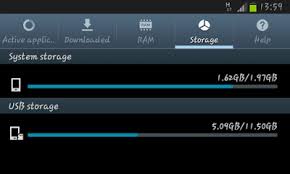
Limited storage space might be a barrier if you the type that love downloading videos, music, files with large size and lot of applications on your Android devices. The more files you have on your phone the more space it consume, despite the facts that there are a lot of decent smartphone nowadays with good inbuilt storage space. The most annoying thing I bet any android user can ever experience either when you want to update your app or download a file and you get ‘insufficient memory’ or ‘Android internal memory is full’. It can be so frustrating.

• How To Embed Any Webpage On Blogger Using HTML Iframe

• How To Set Up And Integrate Facebook Messenger On Blogger For Live Chat

But there is always a way out of every predicament. The below simple steps will guide you through on how to get more space on your Android device.

1. Clear Cache + Data: Cached files are little bits of data stored by apps every time you use them. You can do this manually for individual apps by going to Settings > Storage > Apps then click on clear cache.

2.Clear Old Downloads:
Every time you download new apps, games, videos and PDF or other document from the web it is stored in your Downloads folder, but the chances are you probably don't need it anymore. If you have a File Manager app installed on your device use this to browse your Downloads folder, locate and delete anything you don't need.

3. Back up photos and video to Google Photos, then delete them from your phone:
Photos and video are one of the biggest space hogs on any Android phone, and more so as their integrated cameras come with increasingly high megapixel counts.

Download the free Google Photos app from Google Play, then in the Settings menu select to back up all photos and video over Wi-Fi. Once the media has transferred you can delete them from your phone.

4. Move apps and files to SDcard:If your phone supports sdcard, move all your apps and files to SD card; any or use apps2sd to move difficult apps to SDcard.

And for those using Android 6.0 Marshmallow, you can combine your SDcard memory + phone storage. See steps below;

Step 1: Make sure the microSD card is okay, well inserted inside your Android Marshmallow running smartphone and is in good working condition.

Step 2: Navigate to your smartphone’s ‘Settings’ and go to ‘Storage and USB’ inside the settings menu.
Step 3: Locate your external microSD card under the ‘Portable storage section and tap on it.

Step 4: Post jumping in the external microSD, locate the three-dot menu at the top-right and hit on ‘Settings’

• How To Check Whether Your Android Smartphone Is Running On 64-bit or 32-bit Operating System

• How To Automatically Delete Duplicate Files On Android Device.

Step 5: Now here you will get four options - Eject, Format, Format as Internal and Movie Media. Choose ‘Format as internal’.

Step 6: You will not be greeted by a screen saying that your microSD card will be erased completely and will only work on that particular device. Tap on ‘Erase and Format’.

Step 7: After finishing the process, your external SD card will now work as your internal storage.

5. Use lite apps: With recent improved technology Android developers are now releasing two variants of their apps, one standard, and the other lighter, which not only consumes less cellular data, but takes up less space on your phone, too.
Some of those apps that consume space like Facebook, messenger, Youtube and opera have lite apps, consider switching to them.

Well, this is just few of those ways you can free up and improve the storage space on your Android smartphone, what is your preferred method of freeing up space?

Labels: ,